

How to stream GTA 6 on Twitch and turn it into clips
Streaming GTA 6 is the easiest way to record everything you play. The hard part comes later: turning hours of stream into short clips that bring you new viewers. This is how to do both.
Make your GTA 6 clips
All you need is your Google account
- AI finds your best moments and makes them vertical
- With automatic captions
- 5-star chases
- Street races
- Perfect heists
- Your live reactions
- Leonida at its most random
- Your first ride through Vice City
- Epic fails
Go live from your PS5
Link your Twitch account in Settings > Users and Accounts > Linked Services. Then press the Create button, choose Broadcast, pick Twitch and select Go Live. In the broadcast options you can add your camera and your party's audio.
Go live from your Xbox
On Xbox, link your Twitch account and start the broadcast from the Capture & share menu in the guide, or from the Twitch app.
Save your past broadcasts
Turn on Store past broadcasts in your Twitch settings. Twitch keeps them for 7 days, and longer if you are an Affiliate or a Partner, so get the clips you want before they disappear.
Find the moments in hours of stream
A four-hour stream holds a handful of moments worth a clip. Twitch's Clip button helps while you are live, but going back through the whole broadcast afterwards is what takes the time.
Paste the link of your Twitch broadcast and the AI suggests the best moments of the stream: chases, fails and your reactions.
Turn them into vertical clips
Stream moments are horizontal, with your camera in a corner. For TikTok, Shorts and Reels they need to be vertical, with the game and your face both visible.
Clips come out vertical and captioned, ready to post, so one stream can fill a week of posts.
Use the clips to grow your stream
Post clips every day between streams and say when you go live next. Short clips reach people who don't know you yet, and the ones who like them come back to watch you live.
What it takes by hand, and with Nexus Clips
Nexus Clips goes through your session, finds the best moments and makes them vertical with captions. You just choose which ones to post.
By hand
- Watch back hours of gameplay looking for the moment
- Trim each clip second by second
- Reframe every clip to vertical so the action stays in frame
- Type and time the captions word by word
With Nexus Clips
- Paste your stream link or upload your recording
- AI suggests the best moments of your session
- Clips come out vertical, with the action in frame
- Captions are added automatically, readable with the sound off
Make your GTA 6 clips
All you need is your Google account
You play for hours. AI looks for the best moments.
It searches your session for the chases, heists and laughs, and prepares them vertical with captions people can read with the sound off.
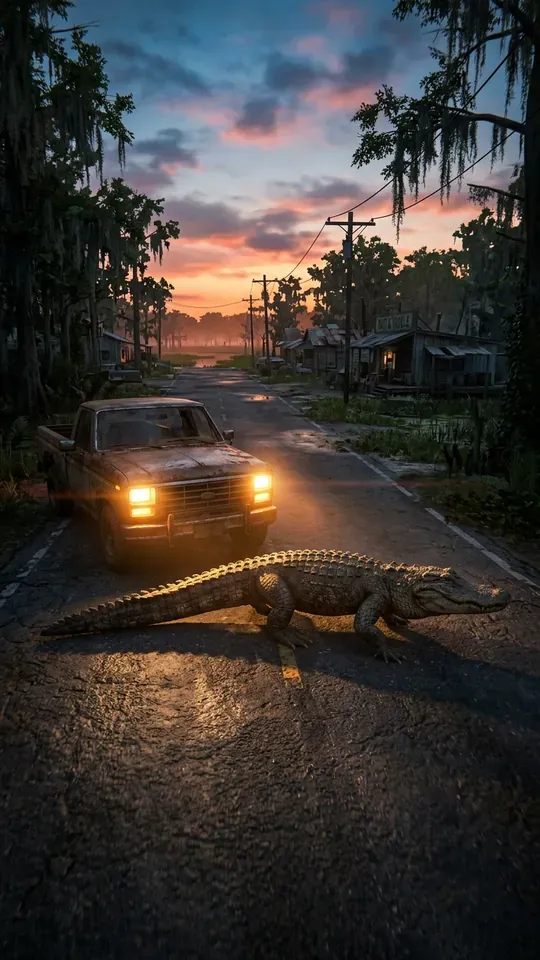 Most random
ONLYINLEONIDA
0:24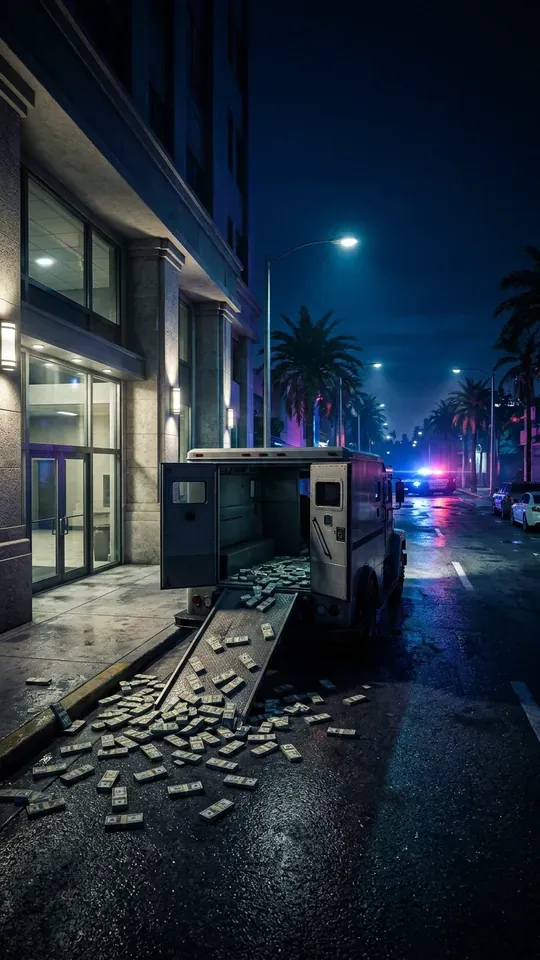 Heist
THEPERFECTSCORE…ALMOST
0:31 5 stars
FIVESTARSANDNOBRAKES
0:18 Getaway
ESCAPINGACROSSVICECITYBAY
0:27 Vice City nights
MYFIRSTNIGHTINVICECITY
0:22
Make your GTA 6 clips
All you need is your Google account
Frequently asked questions
Let AI find your best moments
Paste your stream link or upload what you recorded on PS5 or Xbox. Nexus Clips finds the best moments of your session and prepares them vertical and captioned for TikTok, Shorts and Reels.
Make your GTA 6 clips
All you need is your Google account
More GTA 6 guides
 How to make GTA 6 edits for TikTokRead the guide
 GTA 6 clip ideas that go viralRead the guide
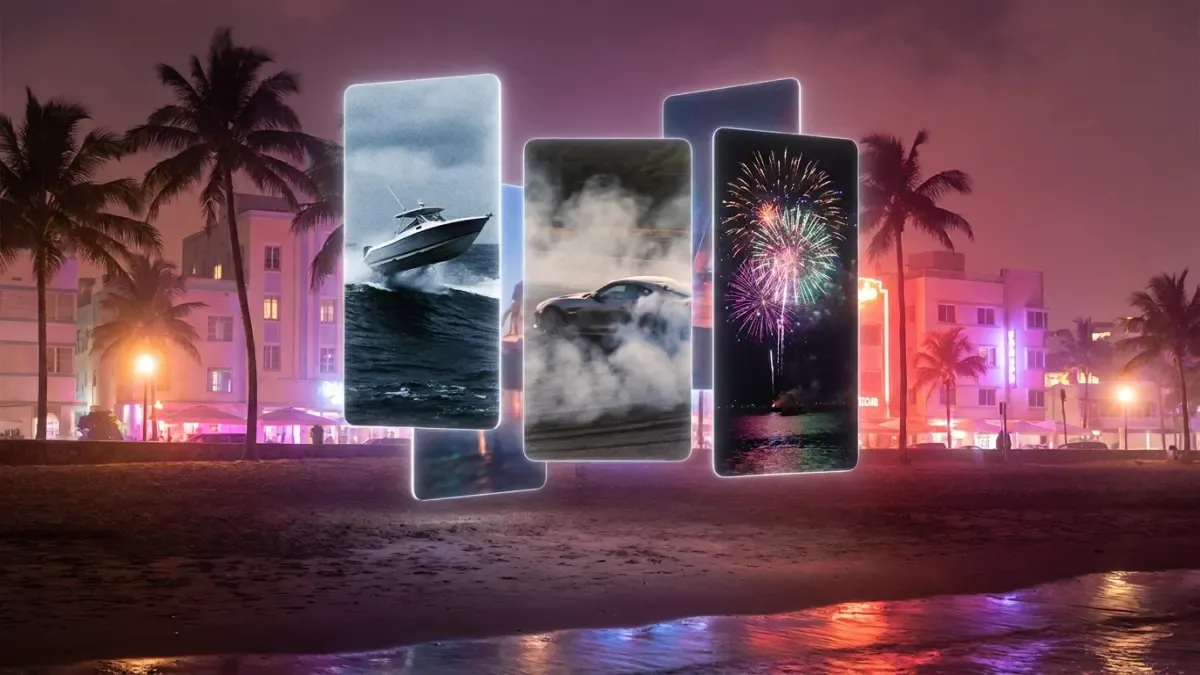 GTA 6 clips for edits: how to get your ownRead the guide
 How to make GTA 6 Reels for InstagramRead the guide
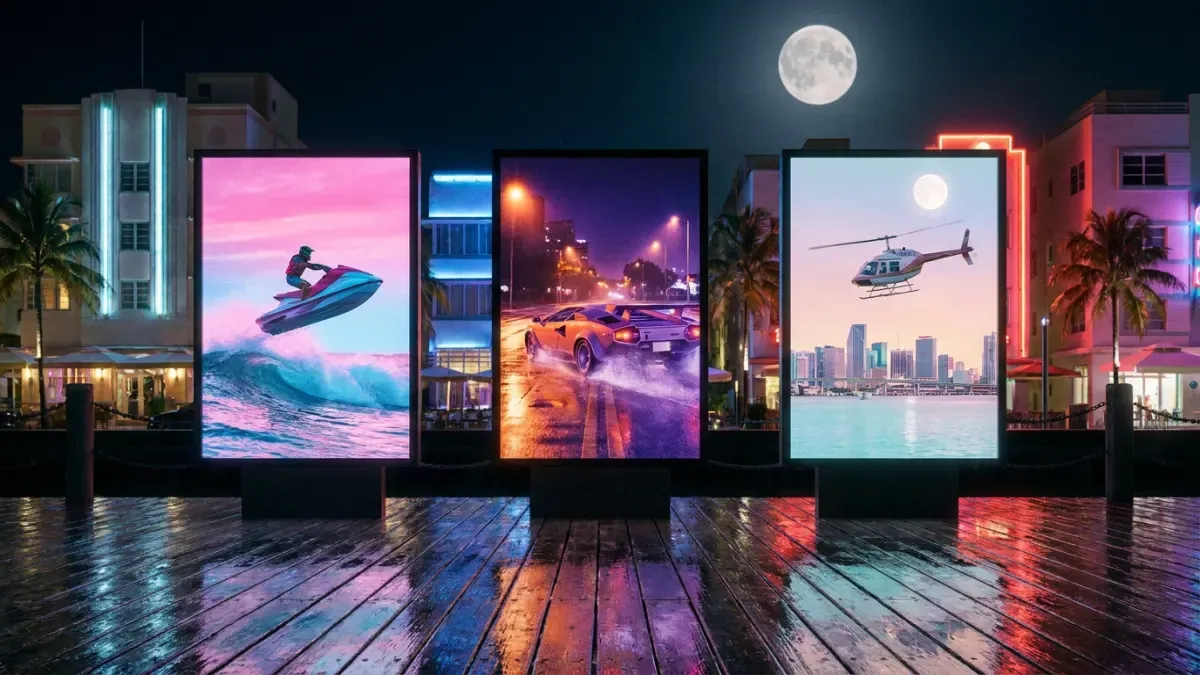 How to make GTA 6 YouTube ShortsRead the guide
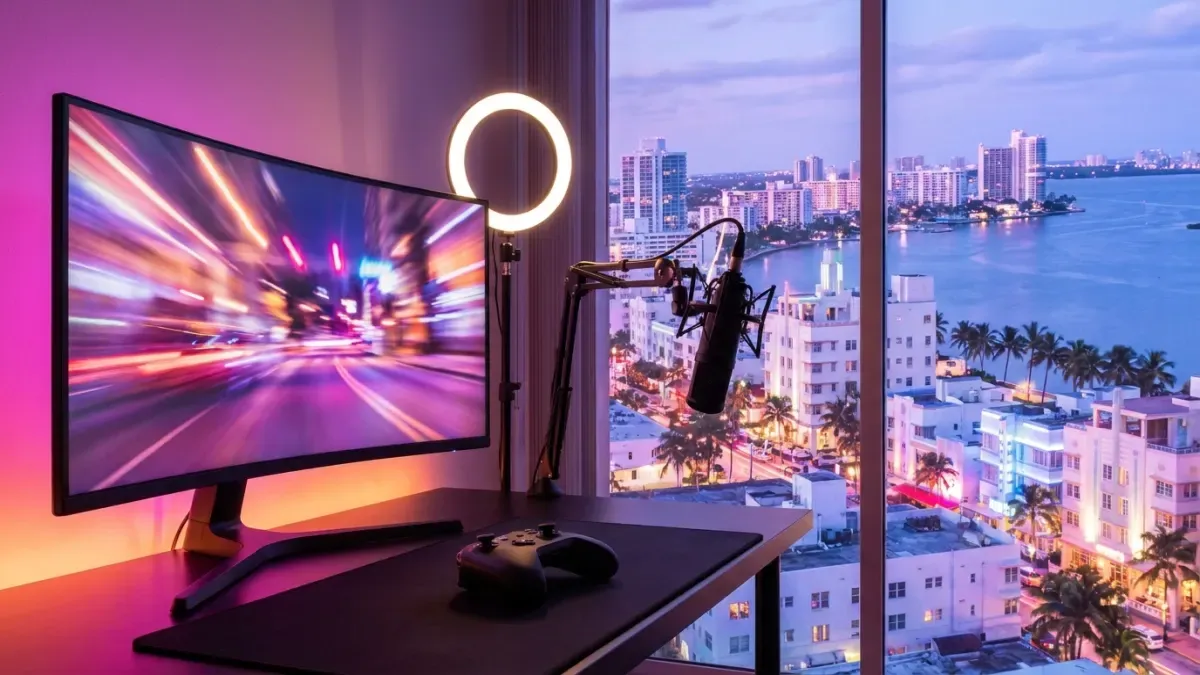 How to start a GTA 6 channel on Shorts and TikTokRead the guide
Grand Theft Auto, GTA and GTA VI are trademarks of Take-Two Interactive Software, Inc. The illustrations on this page are original artwork inspired by the game, not game images. Nexus Clips is not affiliated with, sponsored or endorsed by Rockstar Games or Take-Two Interactive.